DTF Software RIP determina como as artes, os dados CMYK, a tinta branca e as configurações de impressão chegam à impressora. Se os operadores precisarem alternar entre softwares de design, criar manualmente canais de tinta branca, exportar vários arquivos e verificar configurações em janelas diferentes, cada trabalho gera mais oportunidades para atrasos ou erros.
O software DTF RIP converte arquivos gráficos em dados prontos para impressão, controla os canais CMYK e de tinta branca, aplica configurações de cor e saída e envia o trabalho para a impressora. O XF SmartPrint oferece controles de cor integrados, criação automatizada de camada branca, visualizações de canais e opções de fluxo de trabalho projetadas para reduzir as etapas de configuração na produção diária de DTF.
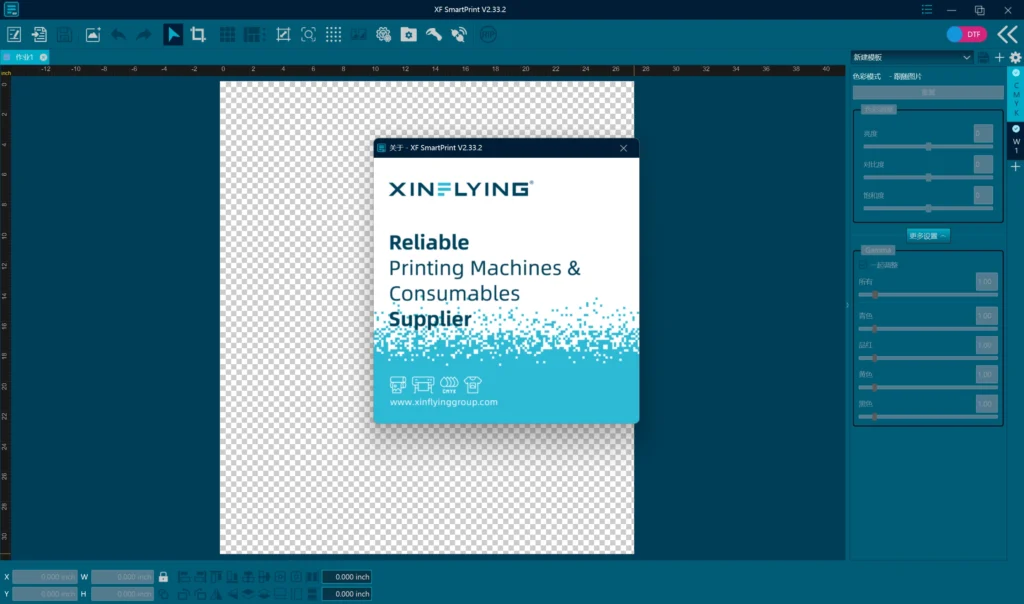
Este guia explica nove recursos do XF SmartPrint e, mais importante ainda, o que cada um deles significa para uma gráfica especializada em impressão de roupas personalizadas. Ele também aborda as questões relacionadas à compatibilidade e ao licenciamento que você deve esclarecer antes de escolher um pacote RIP.
Nota sobre o produto: Este artigo baseia-se na apresentação do XF SmartPrint da Xinflying e no manual de operação oficial da empresa. O texto do manual utiliza o nome do software básico “XF SmartPrint”, enquanto suas capturas de tela mostram a interface do XF SmartPrint com a marca Xinflying. As funções disponíveis variam de acordo com a edição do software, a autorização do dongle, a configuração da impressora e o escopo da integração. Verifique a versão e a licença fornecidas antes da compra.
O que o software DTF RIP faz?
O software DTF RIP atua como um intermediário entre a arte final e a impressora. Ele interpreta o arquivo de origem, separa ou gera os canais de tinta necessários, aplica as configurações de cor e resolução, organiza o trabalho e converte o resultado em dados que a impressora pode processar.
Essa função é importante porque a impressão DTF não é um processo padrão de impressão de escritório. Um trabalho pode exigir:
- Dados de imagem CMYK.
- Uma base branca controlada.
- Configurações de “choke”, “spread” ou “edge” para a camada branca.
- Ajustes de cor ou configurações do fluxo de trabalho ICC.
- Espelhamento, redimensionamento, posicionamento e aninhamento.
- Configurações específicas da impressora para resolução, passagem e canais de tinta.
- Uma pré-visualização que ajuda o operador a detectar problemas de configuração antes de imprimir o filme.
Um bom software de RIP não garante a precisão das cores nem dispensa o treinamento do operador. Ele oferece à gráfica um ambiente controlado para preparar, inspecionar e enviar trabalhos.
O manual de operação lista TIF/TIFF, JPG/JPEG, PNG, BMP, PDF e AI como formatos de arte final compatíveis. A aceitação do arquivo não garante que todas as transparências, fontes, sobreimpressões ou configurações de espaço de cor sejam reproduzidas conforme o esperado; portanto, arquivos representativos do cliente ainda devem passar por uma verificação prévia e ser testados.
Visão geral do recurso XF SmartPrint
| Recurso XF SmartPrint | Valor prático para uma gráfica |
|---|---|
| Interface simplificada | Ajuda os operadores a aprenderem o fluxo de trabalho básico sem precisarem navegar por várias ferramentas distintas |
| Vários idiomas de interface | Torna o treinamento e o uso diário mais acessíveis para equipes multilíngues |
| Ajustes de cor integrados | Permite que os operadores realizem correções de imagem compatíveis sem precisar repetir as etapas de exportação e importação |
| Vários métodos de geração de camadas brancas | Reduz a necessidade de criar manualmente cada canal de pontos brancos em um software externo |
| Pré-visualização do canal branco e do canal de manchas | Ajuda os operadores a inspecionar os dados do canal e a saída gerada antes de aplicar o filme e a tinta |
| Autorizações para DTF e DTG; versão UV descrita na documentação do produto | Adapta o ambiente RIP à tecnologia de impressão licenciada e ao aplicativo |
| Opções de pasta ativa, digitalização, fila e integração | Permite um gerenciamento mais estruturado da entrada de trabalhos e do processo de produção |
| Interpretação do Adobe PDF Print Engine 6 | Oferece um fluxo padronizado para o processamento de arquivos gráficos em PDF nas edições compatíveis |
| Mecanismo de atualização do dongle de licença | Permite que a autorização de versão ou função elegível seja atualizada por meio do dispositivo de licença |
Essas funções são mais úteis quando estão adequadas à impressora, ao cabeçote de impressão, à configuração de tinta, ao fluxo de trabalho de cores e ao volume de produção. Uma longa lista de recursos não pode compensar um driver incompatível ou uma edição que não ofereça as funções de que sua empresa precisa.
1. Uma interface simplificada reduz as dificuldades de treinamento
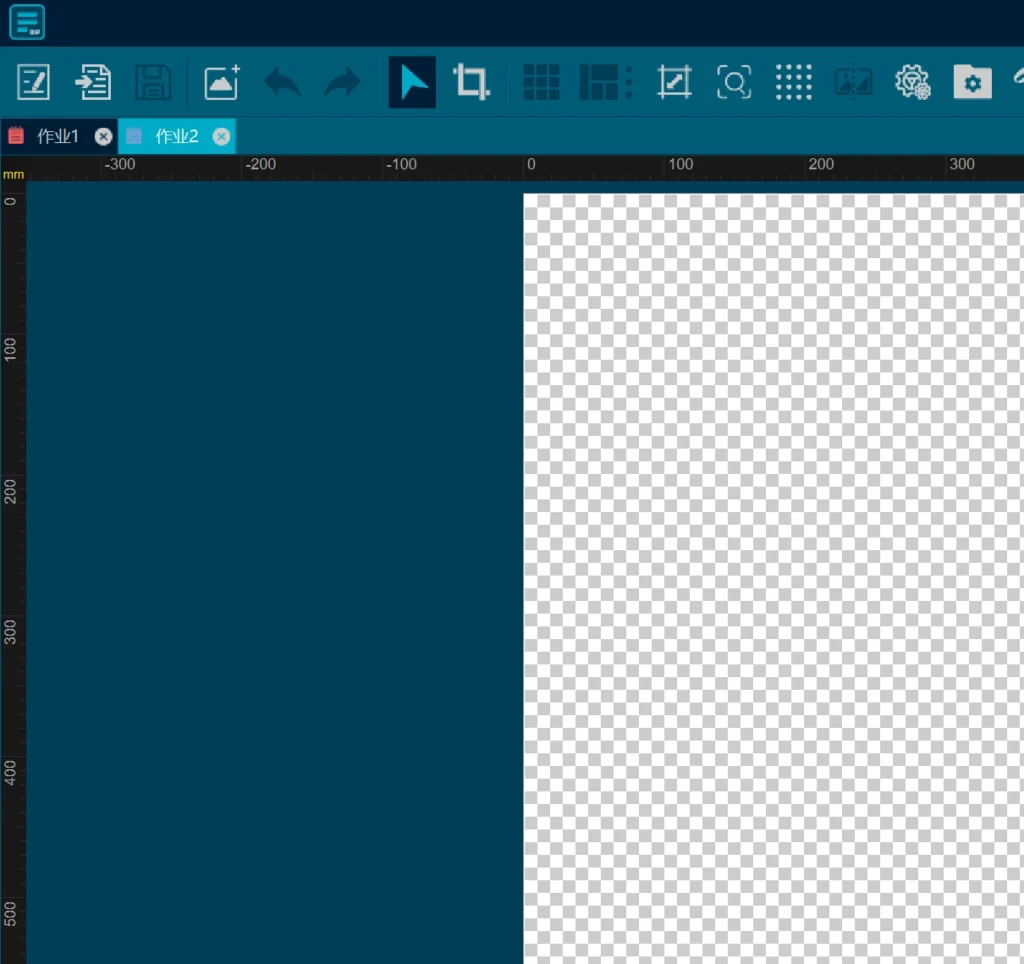
Os softwares de RIP geralmente combinam controles técnicos para cor, canais, resolução, aninhamento e saída da impressora. Essa funcionalidade é útil, mas uma interface sobrecarregada pode atrasar um operador iniciante e tornar mais difícil padronizar o trabalho de rotina.
O XF SmartPrint utiliza uma área de trabalho otimizada que mantém a área principal da arte final, os controles do trabalho e as configurações de canal visíveis em um único ambiente. O objetivo não é eliminar todas as decisões técnicas, mas sim facilitar o acompanhamento do fluxo normal de produção.
Para uma pequena gráfica, uma interface mais clara pode ajudar a:
- Treinamento de um segundo operador.
- Documentação de uma configuração de trabalho repetível.
- Reduzir a troca desnecessária entre menus.
- Identificação de controles comuns durante a produção.
- Manter o operador concentrado no arquivo de impressão atual.
A facilidade de uso ainda deve ser verificada com um arquivo real. Peça ao fornecedor para demonstrar as etapas exatas para importar a arte, gerar a camada de branco, aplicar o modo de impressão correto, visualizar os canais e enviar o trabalho.
2. Suporte a vários idiomas para equipes de produção multilíngues
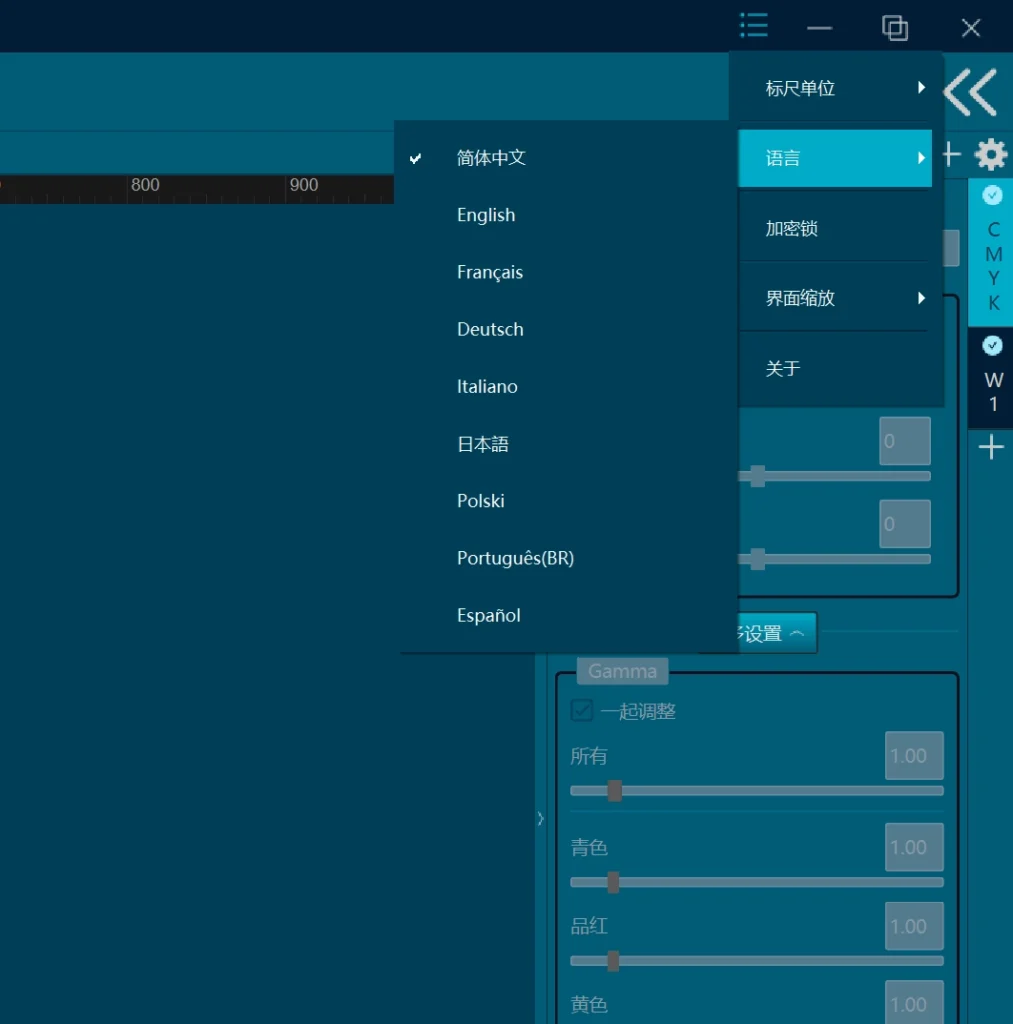
O manual de instruções da XF SmartPrint confirma nove idiomas de interface: chinês simplificado, inglês, francês, alemão, italiano, japonês, polonês, português do Brasil e espanhol. A apresentação do produto menciona o russo, o árabe e o coreano como adições previstas, mas os materiais disponíveis não confirmam que esses três idiomas já tenham sido lançados.
O suporte a idiomas pode facilitar a integração quando o proprietário da loja, o instalador e o operador não falam a mesma língua materna. Além disso, reduz o risco de treinar alguém com capturas de tela traduzidas, enquanto a interface real utiliza rótulos diferentes.
Verifique quais idiomas estão disponíveis na versão fornecida com sua impressora. Um idioma exibido na fase de desenvolvimento não deve ser considerado disponível até que apareça na versão licenciada.
3. Os ajustes de cor integrados reduzem a necessidade de transferência entre softwares
O XF SmartPrint inclui controles de cor de imagem no ambiente do RIP. As ferramentas documentadas abrangem ajustes comuns, como brilho, contraste, saturação e controle no nível dos canais.
Isso pode ajudar o operador a fazer uma correção de produção compatível sem precisar exportar a arte final, abrir outro programa, salvar um novo arquivo e importá-lo novamente. Menos etapas de transferência simplificam o controle de arquivos, especialmente quando uma gráfica processa muitos pedidos pequenos.
Os controles integrados não substituem um software completo de design ou pré-impressão. Retoques complexos, edição vetorial, correção de fontes, reparo de transparências e reconstrução de arte-final do cliente ainda podem exigir o uso do aplicativo de design original. A vantagem prática é poder realizar correções comuns voltadas para a saída, bem próximas às configurações de impressão.
Para trabalhos repetidos, registre os valores aprovados em vez de fazer ajustes a olho nu todas as vezes. As decisões relativas às cores também devem ser avaliadas levando em conta a tinta, o filme, o pó, as condições de cura, as configurações da prensa térmica, a cor da peça de roupa e o fluxo de trabalho ICC corretos.
4. A geração inteligente da camada branca simplifica a preparação do arquivo DTF
A tinta branca é um elemento fundamental na produção DTF, pois cria a base por baixo da imagem CMYK. Preparar essa base manualmente pode exigir um canal de cor especial, um controle cuidadoso das bordas e etapas adicionais de preparação do arquivo.
O XF SmartPrint oferece vários métodos de geração de camadas brancas e pode criar a camada de tinta branca dentro do fluxo de trabalho do RIP. Isso pode reduzir a necessidade de criar manualmente cada canal pontual no Photoshop ou em outro editor de imagens.
O manual descreve quatro modos de geração de luz branca:
- Preencha toda a área: preenche toda a área selecionada da imagem com branco.
- 100% branco sob qualquer pixel colorido: cria uma base branca sólida sempre que houver dados de cor.
- Gradiente branco positivo: varia em branco de acordo com os dados da imagem na direção positiva.
- Negativo com gradiente branco: varia para o branco na direção oposta.
O software também oferece controles de redução ou ampliação do canal branco em quatro direções, além de configurações de limiar e proteção de detalhes. Esses controles podem ajudar a gerenciar a relação entre a imagem colorida e a camada de base branca, mas os valores corretos dependem da arte final e do sistema físico de impressão.
O operador ainda precisa escolher o método adequado para a arte. Um logotipo em tom sólido, uma fotografia com bordas transparentes e uma arte com efeito envelhecido podem exigir configurações diferentes para o branco. Verifique:
- Se o branco é gerado sob todas as cores impressas ou apenas em áreas selecionadas.
- O estrangulamento ou a dispersão em torno da camada branca.
- Como a transparência e os contornos suaves são interpretados.
- Se os objetos totalmente brancos devem ser impressos em CMYK, com tinta branca ou ambos.
- Como fica o resultado na peça de roupa após a cura e a prensagem.
A geração automatizada economiza trabalho de preparação apenas quando a visualização prévia e a saída de teste são verificadas.
5. A visualização do canal ajuda a detectar problemas de configuração antes da impressão
O XF SmartPrint oferece visualização direta em cores e por canal pontual na área de trabalho. O manual também descreve especificamente a visualização das saídas PRN ou TIF geradas. Essas visualizações permitem que o operador inspecione os dados dos canais, a cobertura da camada de base, o comportamento das bordas e o layout do trabalho antes da produção.
Uma verificação pré-voo útil inclui:
- Confirmar se a arte está invertida quando o fluxo de trabalho assim o exigir.
- Verificar se a tinta branca aparece sob as cores pretendidas.
- Procurando por detalhes que faltam ou áreas brancas indesejadas.
- Inspecionando a borda entre CMYK e branco.
- Verificação do tamanho, da posição e da orientação do trabalho.
- Confirmando o modo de impressão selecionado e os canais de tinta.
A visualização prévia ajuda a detectar problemas relacionados a arquivos e canais; não se trata de uma simulação garantida da peça final. A cor real e o toque também dependem do perfil, dos limites de tinta, do filme, do pó, da cura, das configurações de transferência, do tecido e da técnica do operador.
6. As funções licenciadas são compatíveis com diferentes tecnologias de impressão
O manual de operação confirma que o DTF e o DTG são funções controladas por dongle, e a interface só pode alternar entre elas quando houver a autorização correspondente. A apresentação do produto da Xinflying também descreve uma versão UV. Como o manual disponível não documenta o fluxo de trabalho UV com o mesmo nível de detalhes, confirme o produto UV exato, as funções e a licença diretamente com o fornecedor.
Para uma loja especializada em DTF, escolha a edição DTF e verifique se ela oferece suporte a:
- O modelo exato da impressora e do controlador.
- A configuração do cabeçote de impressão instalado.
- Mapeamento dos canais CMYK e da tinta branca.
- As larguras e resoluções de impressão exigidas.
- Os modos utilizados na produção normal.
- Os perfis ICC fornecidos para a combinação de tinta, filme e impressora.
Não presuma que uma licença para uma tecnologia de impressão inclua automaticamente as demais. Se sua empresa utiliza equipamentos DTF e UV, pergunte se são necessárias edições separadas, dongles separados ou autorizações adicionais.
7. Ferramentas de recebimento e enfileiramento de tarefas permitem uma produção mais estruturada
O manual descreve ferramentas locais de fluxo de trabalho que podem reduzir o manuseio repetitivo de tarefas:
- Uma pasta ativa que gera saídas em PRN sem a necessidade de carregar manualmente cada imagem.
- Suporte a leitores ópticos para o gerenciamento de tarefas por meio de leitores manuais.
- Um centro integrado de gerenciamento de impressão para visualizar, editar, reordenar, cancelar e monitorar trabalhos na fila.
- Configuração da impressora-terminal por meio do endereço IP e da configuração da porta, com instalação ou importação do driver.
- Visualizações do status da impressora e do nível de tinta na interface de gerenciamento.
O manual também descreve três modos de liberação de trabalhos: impressão manual após o RIP, impressão automática após o RIP e impressão enquanto os dados do trabalho estão sendo enviados ou processados. A escolha do modo adequado depende da impressora, da rede, dos controles do operador e da tolerância ao risco.
A apresentação da Xinflying descreve, além disso, as conexões de pedidos POD ou MES e um caminho padronizado de interface de rede. Essas afirmações sobre integração são específicas ao projeto, de acordo com as evidências disponíveis; a API exata, a troca de dados e o escopo da implementação não estão documentados no manual.
As solicitações de integração exigem um escopo técnico, não apenas uma caixa de seleção. Antes de planejar um fluxo de trabalho automatizado, pergunte-se:
- Qual edição do XF SmartPrint inclui a função necessária?
- A conexão é nativa, configurada pelo Xinflying ou desenvolvida por terceiros?
- Quais formatos de arquivo, metadados de tarefa e mensagens de status são compatíveis?
- Como são definidas as configurações de modo de impressão, quantidade, tamanho e cor?
- O que acontece quando um arquivo não passa na verificação prévia?
- O sistema consegue impedir que o mesmo trabalho seja impresso duas vezes?
- Quem dá suporte à conexão após a instalação?
Mantenha a aprovação manual no processo até que o fluxo automatizado tenha sido testado com pedidos reais.
8. O Adobe PDF Print Engine oferece suporte à interpretação de PDFs
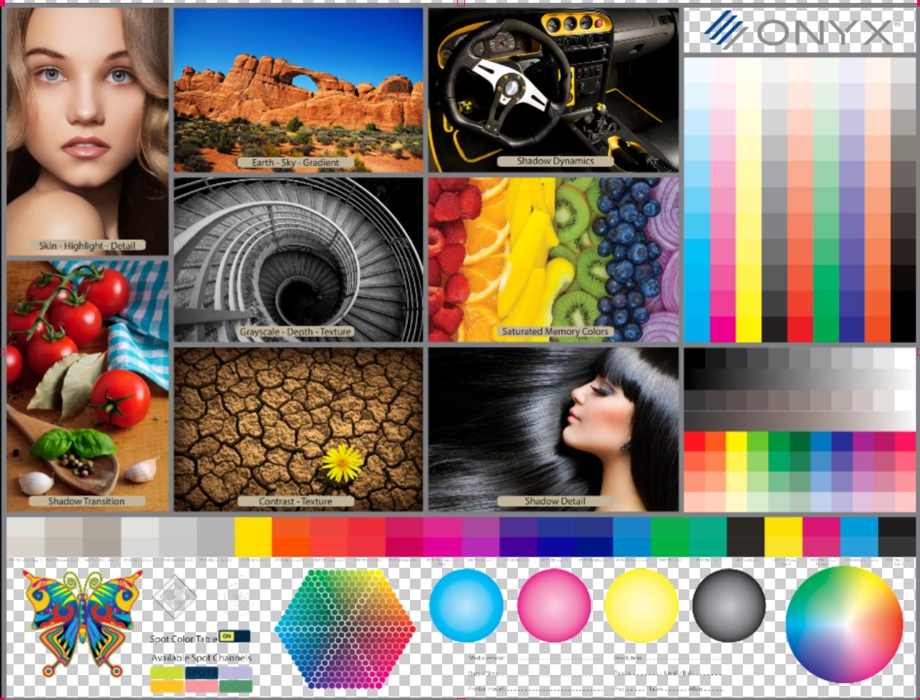
A apresentação do produto da Xinflying identifica o Adobe PDF Print Engine 6, comumente chamado de APPE 6, para o processamento padronizado de PDFs. O manual de operação confirma, separadamente, que a tela “Sobre” do software exibe uma licença do APPE Engine. Juntas, essas fontes corroboram a interpretação baseada no APPE, mas não comprovam que o APPE 6 esteja incluído em todas as edições fornecidas do XF SmartPrint.
A interpretação do PDF é importante quando a arte final contém transparência, elementos vetoriais, informações de cor incorporadas ou conteúdo criado em diferentes aplicativos de design. Um processo de interpretação consistente pode ajudar a manter o fluxo de trabalho de processamento de arquivos previsível entre operadores e dispositivos.
O APPE não elimina a necessidade da verificação pré-impressão. Fontes, imagens ausentes, espaços de cor inadequados, conteúdo rasterizado de baixa resolução, sobreposições e transparências inesperadas ainda podem resultar em um trabalho com erros. Solicite uma demonstração utilizando os tipos de arquivos de clientes que sua gráfica recebe com mais frequência.
Como os componentes de software podem variar de acordo com a edição e a versão, verifique a versão do APPE e a autorização incluídas na licença do XF SmartPrint fornecida com sua impressora.
9. As atualizações de dongles de licença tornam a autorização de funções mais flexível
O XF SmartPrint utiliza um mecanismo de chave de licença que permite autorizar versões ou funções elegíveis do software por meio de um processo de atualização. O objetivo é oferecer uma maneira mais simples de atualizar os recursos licenciados sem substituir automaticamente todo o pacote de software.
O manual indica que a versão padrão possui um limite de largura de impressão de 70 cm e pode ser atualizada para uma largura específica ou ilimitada. Ele também apresenta a autorização controlada por dongle para funções que incluem DTF, multicanal e tinta branca, DTG, pasta ativa, corte, ICC, scanner, servidor, RPC, correção de cor e modo de engenheiro. Uma função que apareça na interface ou no manual não deve ser considerada incluída até que seja indicada como autorizada no dongle fornecido.
Antes da compra, solicite os termos da licença por escrito:
- Quais funções estão incluídas na entrega?
- A licença é vitalícia, por prazo determinado ou vinculada a um plano de suporte?
- Quais atualizações estão incluídas?
- Quais upgrades exigem uma taxa adicional?
- É possível substituir um dongle danificado ou perdido?
- A licença está vinculada a um único computador ou impressora?
- Qual é o processo de recuperação caso o computador de produção apresente falha?
O dongle faz parte do sistema de produção. Guarde as informações da licença e os dados de contato do suporte em um local onde a loja possa acessá-los em caso de troca de computador ou reparo urgente.
Para quem é destinado o software XF SmartPrint DTF RIP?
O XF SmartPrint é mais adequado para uma gráfica que deseja que o software RIP e a configuração da impressora sejam fornecidos como um único fluxo de trabalho com suporte técnico. Ele pode ser uma boa opção quando a gráfica precisa de:
- Geração da camada de tinta branca no RIP.
- Uma pré-visualização dos canais de branco ou de cores especiais.
- Ajustes comuns de cor nas configurações de saída.
- Uma interface mais simples para os operadores de treinamento.
- Opções de interface multilíngue.
- Opções de fluxo de trabalho com pasta ativa, digitalização, impressão sob demanda (POD) ou MES.
- Uma edição de software selecionada para a produção de DTF.
Essa opção pode não ser a mais adequada caso a gráfica precise de compatibilidade com uma impressora de terceiros não verificada, uma plataforma de automação externa específica, um sistema operacional que ainda não tenha sido confirmado ou uma função avançada de pré-impressão que ainda não tenha sido comprovada. A compatibilidade deve ser comprovada antes da decisão de compra.
O que você deve verificar antes de escolher um software RIP para DTF?
Utilize esta lista de verificação durante uma demonstração do fornecedor:
| Área | Pergunta a ser feita |
|---|---|
| Compatibilidade com impressoras | Essa configuração específica é compatível com o modelo da minha impressora, placa, cabeçotes de impressão, largura e canais de tinta? |
| Requisitos de hardware | Quais são os requisitos em termos de sistema operacional, processador, memória, armazenamento, portas e configurações de rede? |
| Licença | Quais funções do dongle estão incluídas? A largura padrão de 70 cm é suficiente? E quais são os custos associados a uma licença para largura maior, atualizações futuras ou substituição? |
| Fluxo de trabalho de cores | Quais perfis ICC são fornecidos e quem os cria ou atualiza? |
| Tinta branca | Quais métodos de geração de branco, configurações de estrangulamento e ferramentas de visualização estão incluídos? |
| Pré-verificação do arquivo | Como a versão fornecida lida com os arquivos reais da loja nos formatos TIF/TIFF, JPG/JPEG, PNG, BMP, PDF e AI? |
| Anúncio de vaga | Qual dos três modos de impressão documentados é recomendado para esta impressora e este fluxo de trabalho? |
| Automação | Quais funções de hot-folder e de scanner estão autorizadas, e quais são, na prática, os dados que o POD, o MES ou as interfaces de rede trocam entre si? |
| Treinamento | O fornecedor treinará os operadores utilizando os arquivos e os modos de produção da própria oficina? |
| Suporte | Quem é responsável pela configuração de softwares, problemas com perfis, recuperação de licenças e solução de problemas relacionados à impressão? |
Não avalie um software de RIP apenas com base em capturas de tela. Execute um teste, desde a importação até a peça transferida, e anote as configurações utilizadas.
O software DTF RIP é um dos componentes de um sistema de produção estável
O software RIP controla a preparação e a saída dos arquivos, mas não pode corrigir um trajeto de tinta instável, condições inadequadas do ambiente, peças de manutenção desgastadas, consumíveis de baixa qualidade ou processos incorretos de cura e prensagem.
Avalie o RIP juntamente com a impressora, a circulação da tinta branca, a filtragem, a proteção do cabeçote de impressão, o agitador de pó, o sistema de cura, o filme, a tinta, o pó, a prensa térmica, os perfis de cor, o treinamento dos operadores e o suporte técnico.
Através da Xinflying Linha de impressoras DTF, as configurações completas podem incluir a impressora, equipamentos de acabamento, consumíveis e opções de software RIP. A Xinflying também oferece manuais de operação em inglês, diagnóstico remoto, suporte técnico 24 horas por dia, 7 dias por semana, e assistência técnica local nos Estados Unidos.
Se você estiver comparando o pacote completo de equipamentos, use o Guia de compra de impressoras DTF avaliar o volume de produção, a largura de impressão, o gerenciamento da tinta branca, a manutenção, o custo operacional, os consumíveis e o suporte do fornecedor, juntamente com o RIP.
Perguntas frequentes
O melhor software RIP para DTF é aquele que foi verificado especificamente para a sua impressora, cabeçotes de impressão, canais de tinta, sistema operacional, perfis e fluxo de trabalho de produção. Compare os controles da camada branca, as visualizações dos canais, o gerenciamento de cores, o gerenciamento de trabalhos, o licenciamento, o treinamento e o suporte. Um pacote popular não serve para nada se não for capaz de operar corretamente com a sua configuração.
Sim, um fluxo de trabalho DTF comercial normalmente requer um software RIP para interpretar a arte final, controlar as tintas CMYK e a tinta branca, aplicar os modos de impressão e as configurações de cor e enviar o trabalho para a impressora. O software e a versão exatos dependem da impressora e do controlador.
O XF SmartPrint pode gerar camadas brancas e realizar ajustes de cor compatíveis dentro do RIP, reduzindo a necessidade de usar o Photoshop em todas as etapas da produção. Ele não substitui a criação completa de arte-final, a edição vetorial, o retoque, a correção de fontes nem reparos complexos de pré-impressão.
Sim. A documentação do XF SmartPrint mostra uma visualização direta dos dados de cor e dos canais de cores especiais, e o manual descreve como visualizar a saída gerada nos formatos PRN ou TIF. Os operadores devem usar essas visualizações para verificar a cobertura da camada de base e as bordas e, em seguida, confirmar o resultado com uma amostra impressa e transferida.
O manual de operação lista os formatos TIF/TIFF, JPG/JPEG, PNG, BMP, PDF e AI. Arquivos complexos em PDF ou AI ainda podem conter fontes, transparência, sobreposição ou configurações de espaço de cor que exijam uma verificação prévia; portanto, teste os tipos de arquivo e as exportações dos aplicativos de design utilizados em seu fluxo de trabalho real.
O manual descreve quatro opções: preencher toda a área, inserir o branco 100% sob qualquer pixel colorido, gerar um gradiente branco positivo ou gerar um gradiente branco negativo. Os operadores também podem reduzir ou ampliar o canal de branco em quatro direções e ajustar o limiar e a proteção de detalhes.
A pasta ativa documentada pode gerar saídas PRN sem a necessidade de carregar manualmente cada imagem. O centro de gerenciamento de impressão permite que o operador visualize, edite, reordene, cancele e monitore os trabalhos na fila. Essas funções exigem a licença correspondente e uma configuração de impressora validada.
Os materiais do XF SmartPrint descrevem a integração entre pedidos de impressão sob demanda (POD) e do sistema de gerenciamento de produção (MES), um caminho de interface de rede, o processamento em lote por pasta ativa e as opções de digitalização para impressão. A forma exata de troca de dados e o escopo da implementação podem variar de acordo com a edição e o projeto; portanto, confirme esses detalhes por meio de uma demonstração técnica do fluxo de trabalho.
O manual de instruções confirma os idiomas: chinês simplificado, inglês, francês, alemão, italiano, japonês, polonês, português do Brasil e espanhol. A apresentação menciona o russo, o árabe e o coreano como adições previstas, mas sua disponibilidade atual não está confirmada.
Não se deve presumir que haja compatibilidade universal. Solicite à Xinflying que confirme o modelo da impressora, o controlador, as cabeças de impressão, a largura, os canais de tinta, o sistema operacional, os perfis e os modos de produção necessários antes de selecionar o software.
Escolha o RIP e a impressora como um único fluxo de trabalho
O software RIP para DTF mais útil não é aquele que possui a lista mais extensa de recursos. É aquele que seus operadores conseguem utilizar corretamente, que sua impressora consegue operar de forma confiável e para o qual seu fornecedor oferece suporte quando o fluxo de trabalho sofre alterações.
Solicite um Orçamento para impressora DTF e receba uma recomendação de configuração com base em sua arte final, aplicações, volume de produção previsto, fluxo de trabalho do operador e requisitos do software RIP.